

A CloudFormation Template is a blueprint or a code file, which defines resources to be created. Let’s see what it is and how to create one.
Template File
- Structure
AWSTemplateFormatVersion: "version date" # optional

Description: # optional
  String

Metadata: # optional - additional information
  template metadata

Parameters: # optional - input values at runtime
  set of parameters

Rules: # optional - validate parameters
  set of rules

Mappings: # optional - key/value pairs as lookup table
  set of mappings

Conditions: # optional - controls resource creation
  set of conditions

Transform: # optional - import snippets of code
  set of transforms

Resources: # required - specify stack resources
  # set of resources
  {Logical Name}:
    Type: {type name}
    Properties:
      set of properties

Outputs: # optional - return values
  set of outputs
Resources
- “Resources” is the only MANDATORY section in a template file.
- Resources are declared and can reference each other.
- Each resource has a property section as key/value pairs.
- Resource Type Identifiers
- <service-provider>::<product-name>::<type-name>
- ex) AWS::EC2::Instance
Custom Resources
You can define custom resources:
- When
- AWS resources that are not supported by CloudFormation
- On-premise resources
- Doing some custom actions
- Backed up by a Lambda function or SNS Topic
- How does it work?
- CloudFormation sends a request to the Lambda function
- The S3 pre-signed URL, which is used for the response, is also passed.
- The Lambda function does its task.
- The JSON response is uploaded to S3 using the pre-signed URL.
- CloudFormation sends a request to the Lambda function
- Use Cases
- Emptying S3 buckets
- Fetching AMI ids
- Type Name
- Custom::<name>
- AWS::CloudFormation::CustomResource
AWSTemplateFormatVersion: '2010-09-09'
Parameters:
  InstanceType:
    Description: "EC2 instance type"
    Type: String
    Default: t2.micro

Mappings:
  AWSInstanceType2Arch:
    t2.micro:
      Arch: HVM64
    t3.micro:
      Arch: HVM64

Resources:
  SampleInstance:
    Type: "AWS::EC2::Instance"
    Properties:
      InstanceType: !Ref InstanceType
      ImageId: !GetAtt ["AMIInfo", "Id"]

  AMIInfo:
    Type: "Custom::AMIInfo"
    Properties:
      ServiceToken: !GetAtt ["AMIInfoFunction", "Arn"]
      Region: !Ref AWS::Region
      Architecture: !FindInMap ["AWSInstanceType2Arch", !Ref InstanceType, "Arch"]

  AMIInfoFunction:
    Type: AWS::Lambda::Function
    Properties:
    ...

Outputs:
  AMIID:
    Description: The Amazon EC2 instance AMI ID.
    Value: !GetAtt ["AMIInfo", "Id"]
Parameters
- A Parameter is a way to provide inputs to the template.
- You can pass custom values into the template at run time.
- Parameters are defined in the top level “Parameters” section.
- Options
- Type: data type
- String
- Number
- List
- CommaDelimitedList
- AWS-Specific Types such as AWS::EC2::Image::Id
- Default
- You can specify the default value.
- Constraints
- AllowedValues: a list of options
- MinLength / MaxLength
- MinValue / MaxValue
- Type: data type
- Referencing a Parameter
- The “Fn:Ref” or its shortcut “!Ref” function is used to refer parameter values.
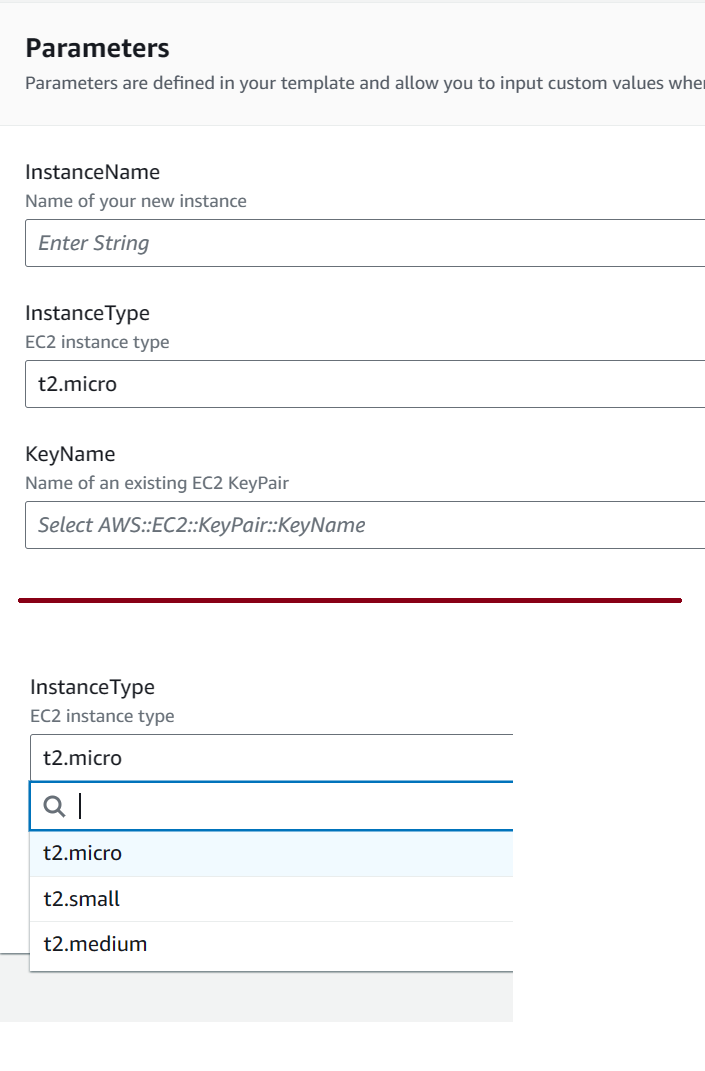
AWSTemplateFormatVersion: 2010-09-09

Parameters:
  InstanceName:
    Description: Name of your new instance
    Type: String
  KeyName:
    Description: Name of an existing EC2 KeyPair
    Type: AWS::EC2::KeyPair::KeyName
  InstanceType:
    Description: EC2 instance type
    Type: String
    Default: t2.micro
    AllowedValues:
      - t2.micro
      - t2.small
      - t2.medium

Resources:
  MyEc2Instance:
    Type: "AWS::EC2::Instance"
    Properties:
      InstanceType: !Ref InstanceType
      ImageId: ami-0b5eea76982371e91
      Tags:
        - Key: "Name"
          Value: !Ref InstanceName
      KeyName: !Ref KeyName
Pseudo Parameters
Pseudo parameters are predefined references to AWS objects. You can use them with the “Ref” function.
https://docs.aws.amazon.com/AWSCloudFormation/latest/UserGuide/pseudo-parameter-reference.html
- AWS::AccountId
- the AWS account ID of the account
- AWS::Region
- a string representing the Region
- AWS::NotificationARNs
- the list of notification Amazon Resource Names (ARNs) for the current stack
- AWS::NoValue
- Removes the corresponding resource property when specified as a return value in the “Fn::If” intrinsic function
- AWS::StackId, AWS::StackName
- the id or name of the stack
Resources:
  MyEc2Instance:
    Type: "AWS::EC2::Instance"
    Properties:
      InstanceType: t2.micro
      ImageId: ami-0b5eea76982371e91 # us-east-1
      Tags:
        - Key: "Name"
          Value: !Join [ " ", [ "Instance", "for", !Ref AWS::Region ] ]
        - Key: "Account"
          Value: !Ref AWS::AccountId
Intrinsic Functions
CloudFormation provides a couple of built-in functions that help you manage your stack. Please refer to the following reference page.
https://docs.aws.amazon.com/AWSCloudFormation/latest/UserGuide/intrinsic-function-reference.html
Syntax
# JSON
{ "Fn::FunctionName": value }

# YAML
Fn::FunctionName: value

# YAML Short form
!FunctionName value
Examples
!Join [ ":", [ a, b, c ] ]    # a:b:c

!Split [ "|" , "a|b|c" ]  # ["a", "b", "c"]

!Select [ "1", [ "apples", "grapes", "oranges" ] ] # grapes

!Base64 "TextToEncode" # Base64 encoded string

# Returns the valur of an attribute of the resource
# Fn::GetAtt:[resourceName, attributeName]
!GetAtt ["MyInstance", "PublicDnsName"]

# creates 6 CIDRs with a subnet mask "/27"
# inside from a CIDR with a mask of "/24"
!Cidr [ "192.168.0.0/24", 6, 5 ]
Mappings
Mappings associate fixed values to another values.
- Define the mappings inside the “Mappings” section
- Use the “FindInMap” function to retrieve the value in the map
!FindInMap [MapName, TopLevelKey, SecondLevelKey]
AWSTemplateFormatVersion: 2010-09-09

Mappings:
  RegionMap:
    us-east-1:
      AMI: ami-0b5eea76982371e91
    us-west-1:
      AMI: ami-bf5540df
    eu-west-1:
      AMI: ami-3bfab942

Resources:
  MyEc2Instance:
    Type: "AWS::EC2::Instance"
    Properties:
      InstanceType: t2.micro
      ImageId: !FindInMap ["RegionMap", !Ref AWS::Region, "AMI"]
      Tags:
      - Key: "Name"
        Value: !Join [" ", ["My Instance for", !Ref AWS::Region]]
Conditions
You can define conditional statement in the “Conditions” section.
- Condition Functions
- !Equals [Value, Value]
- !And [Condition, Condition], !Or[Condition, Condition]
- !Not Condition
- Check
- !If [Condition, TrueValue, FalseValue]
AWSTemplateFormatVersion: "2010-09-09"

Parameters:
  EnvType:
    Description: Environment type
    Default: dev
    Type: String
    AllowedValues: [prod, dev]

Conditions:
  CreateProdResources: !Equals [!Ref EnvType, prod]

Resources:
  EC2Instance:
    Type: "AWS::EC2::Instance"
    Properties:
      ImageId: "ami-0ff8a91507f77f867"
      InstanceType: !If [CreateProdResources, c1.large, t2.small]
  EBSVolume:
    Type: "AWS::EC2::Volume"
    Condition: CreateProdResources
Outputs
You can access information about resources in a stack. At first, you declare output variables and then you can export to or import from other stacks.
- Use Cases:
- VPC Id, Subnet Id
- public IP, DNS name
AWSTemplateFormatVersion: 2010-09-09

Resources:
  MyEc2Instance:
    Type: "AWS::EC2::Instance"
    Properties:
      InstanceType: t2.micro
      ImageId: ami-0b5eea76982371e91
      Tags:
        - Key: "Name"
          Value: "My Public Instance"

Outputs:
  PublicIp:
    Value: !GetAtt ["MyEc2Instance", "PublicIp"]
    Export:
      Name: PublicIp

Cross Stack Reference
- In the first template, declare the output variable and export it.
- In the second template, import the value using “ImportValue” function
!ImportValue PublicIp
EC2 User Data
- You need to pass user data content (script code) through the “Base64” function.
- The script will be encoded.
- The log file
- /var/log/cloud-init-output.log
AWSTemplateFormatVersion: 2010-09-09

Resources:
  MyEc2Instance:
    Type: 'AWS::EC2::Instance'
    Properties:
      InstanceType: t2.micro
      ImageId: ami-0b5eea76982371e91
      Tags:
      - Key: 'Name'
        Value: 'My httpd Server Instance'
      SecurityGroupIds:
        - !Ref MyHttpSecurityGroup
      UserData:
        !Base64 |
            #!/bin/bash -xe
            dnf update -y
            dnf install -y httpd
            echo "<h1>Hello World</h1>" > /var/www/html/index.html
            systemctl start httpd
            systemctl enable httpd
  MyHttpSecurityGroup:
    Type: AWS::EC2::SecurityGroup
    Properties:
      GroupDescription: Open Ports 80
      SecurityGroupIngress:
      - IpProtocol: tcp
        FromPort: '80'
        ToPort: '80'
        CidrIp: 0.0.0.0/0

Outputs:
  Website:
    Description: The Public DNS for the EC2 Instance
    Value: !Sub 'http://${MyEc2Instance.PublicDnsName}'
Dynamic References
You can refer to external values stored in
- ssm: plain text values in SSM Parameter Store
- ssm-secure: secure string in SSM Parameter Store
- secretsmanager: secret values in AWS Secrets Manager
You can use the resolve statement to get the external values.
{{resolve:<service-name>:<key>[:<version>]}}
ssm
Resources:
  MyS3Bucket:
    Type: AWS::S3::Bucket
    Properties:
      AccessControl: '{{resolve:ssm:S3Access:2}}'
ssm-secure
Resources:
  MyUser:
    Type: AWS::IAM::User
    Properties:
      UserName: 'user1'
      LoginProfile:
        Password: '{{resolve:ssm-secure:User1Password}}'
secretsmanager
Resources:
  MyDBInstance:
    Type: AWS::RDS::DBInstance
    Properties:
      DBName: MyDBInstance
      Engine: mysq;
      MasterUserName: '{{resolve:secretsmanager:MyRDS:SecretString:username}}'
      MasterUserPassword: '{{resolve:secretsmanager:MyRDS:SecretString:password}}'
Resources Dependency
- In general, CloudFormation is very smart to figure out the order of creating specified resources based on the references (!Ref)
- You can specify the explicit dependency using the “DependsOn” key.
Resources:
  MyDBInstance:
    Type: AWS::RDS:DBInstance
    ...

  # EC2 instance is created
  # only after the DB instance is successfully created
  MyEC2Instance:
    Type: AWS::EC2::Instance
    DependsOn: MyDBInstance
    ...
Examples
- Create an EC2 instance and enable SSH
AWSTemplateFormatVersion: 2010-09-09

Description: Create an EC2 instance and enable SSH

Parameters:
  KeyName:
    Description: Name of SSH KeyPair
    Type: 'AWS::EC2::KeyPair::KeyName'
    ConstraintDescription: the name of an existing SSH key pair

Resources:
  MyEC2Instance:
    Type: 'AWS::EC2::Instance'
    Properties:
      InstanceType: 't3.micro'
      ImageId: 'ami-0d5eff06f840b45e9'
      KeyName: !Ref KeyName
      SecurityGroups:
        - !Ref InstanceSecurityGroup
      Tags:
        - Key: Name
          Value: My CF Instance
  InstanceSecurityGroup:
    Type: 'AWS::EC2::SecurityGroup'
    Properties:
      GroupName: MySecurityGroup
      GroupDescription: Enable SSH via port 22
      SecurityGroupIngress:
      - IpProtocol: tcp
        FromPort: 22
        ToPort: 22
        CidrIp: 0.0.0.0/0

Outputs:
  InstanceID:
    Description: The Instance ID
    Value: !Ref MyEC2Instance
- Create the Redshift cluster with the SecretManager using dynamic references
AWSTemplateFormatVersion: '2010-09-09'
Resources:

  # Create a user and a password
  MyRedshiftSecret:
    Type: AWS::SecretsManager::Secret
    Properties:
      Description: a Secrets Manager secret for Redshift
      GenerateSecretString:
        SecretStringTemplate: '{"username": "admin"}'
        GenerateStringKey: password
        PasswordLength: 16
        ExcludeCharacters: "\"'@/\\"

  # Create Redshift using the username and password
  MyRedshiftCluster:
    Type: AWS::Redshift::Cluster
    Properties:
      DBName: myjsondb
      MasterUsername:
        Fn::Sub: "{{resolve:secretsmanager:${MyRedshiftSecret}::username}}"
      MasterUserPassword:
        Fn::Sub: "{{resolve:secretsmanager:${MyRedshiftSecret}::password}}"
      NodeType: ds2.xlarge
      ClusterType: single-node

  # Links the secret to the Redshift cluster
  SecretRedshiftAttachment:
    Type: AWS::SecretsManager::SecretTargetAttachment
    Properties:
      SecretId:
        Ref: MyRedshiftSecret
      TargetId:
        Ref: MyRedshiftCluster
      TargetType: AWS::Redshift::Cluster

 Scriptorium